Ranking Issues
Google Business Profile Duplicate Listing: How to Find, Merge, or Remove It
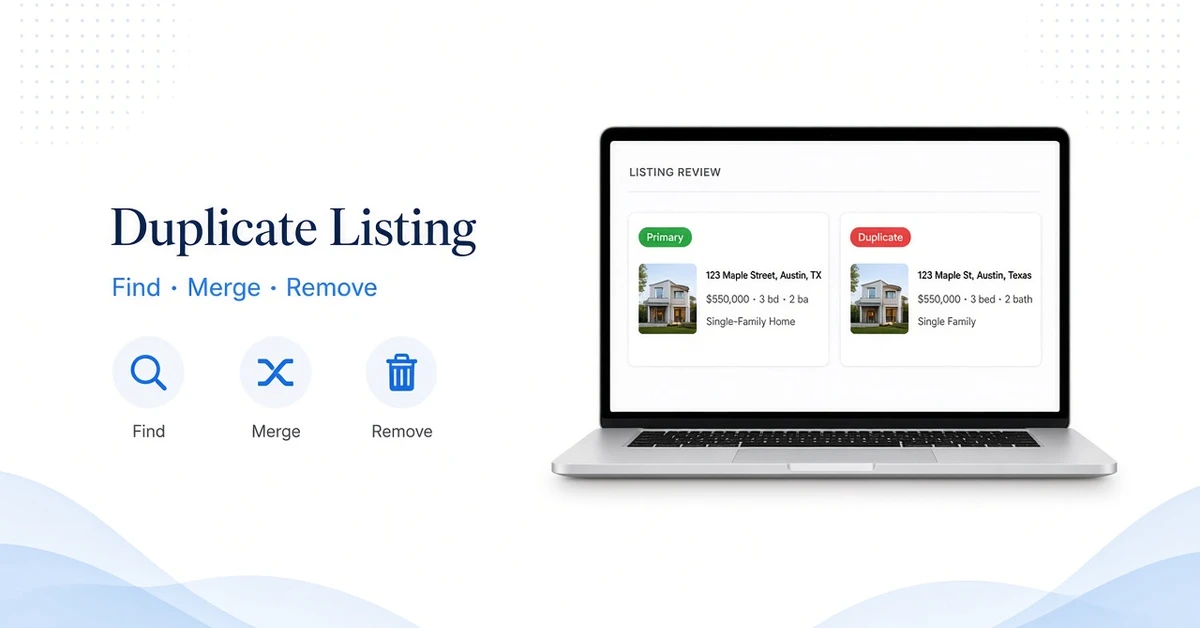
Table of contents expand_more
- Why duplicate Google Business Profiles happen in the first place
- How to find every duplicate listing on Google Search and Maps
- Merge vs. Remove: the decision that saves your reviews
- Path 1: How to merge a duplicate listing on Google Maps (and keep reviews)
- Path 2: When and how to remove a duplicate from your Google Account
- Special cases: practitioners, shared addresses, and moved businesses
- How to keep duplicate listings from coming back
- Final thoughts
Few things quietly wreck a local campaign faster than a Google Business Profile duplicate listing. One profile has your 85 hard-earned reviews. The second has your old suite number, three random star ratings from 2022, and an outdated phone line—and half the time, that wrong one is what shows up when a customer searches on Google Maps.
The worst move you can make right now is creating a third profile to “start fresh,” or hitting delete inside your dashboard without checking where the reviews live. Google’s rules are strict: one eligible profile per business location. How you clean up the extra listing decides whether your reviews combine cleanly or disappear from the profile you manage.
Never create a new profile to fix a Google Business Profile duplicate listing. There is no “Merge” button inside Business Profile Manager. If the extra listing is live on Google Maps and has reviews you want to keep, align its core details with your primary listing and use Suggest an edit → Close or remove → Duplicate of another place on Maps, or request a merge through Google Business Profile Support. When Google merges two profiles, customer reviews combine, though owner replies may be lost. Only use Remove business profile inside your account for an empty, unverified mistake you created yourself.
Why duplicate Google Business Profiles happen in the first place
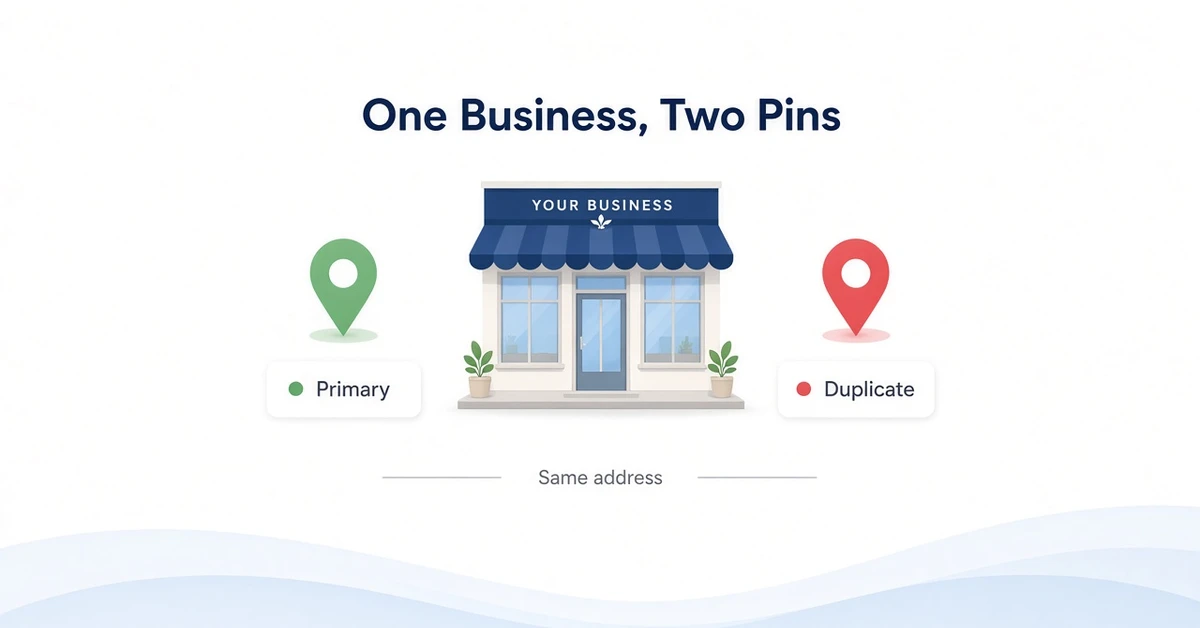
When we audit client accounts, nobody admits to making a duplicate on purpose. Almost every duplicate GBP listing traces back to one of five real-world moments:
- Moving offices and making a new listing instead of updating the address. A business relocates three miles down the road, panics about verification, and spins up a brand-new profile instead of editing the existing address. Now both addresses live on Maps.
- Forgotten logins and agency handoffs. A former marketing manager claimed the listing four years ago under a personal Gmail. The new team cannot find the login, so they create a second profile at the same address.
- Service-line splitting. A salon owner creates one profile for “Hair Salon” and a second profile at the same suite for “Eyebrow Bar.” Google explicitly flags this in its duplicate Business Profile guidelines: different services belong under Services and secondary categories on one profile, not on separate pages.
- Auto-generated Maps pins. Google Maps sometimes generates an unclaimed shell listing from third-party directories, licensing databases, or user check-ins before the owner ever claims the business.
- Practitioner vs. practice confusion. Doctors, dentists, lawyers, and real estate agents often end up with individual practitioner pins competing against the main clinic or firm at the same street address.
Why does it matter so much? First, reviews split across two pins, so neither listing looks as prominent as it should in the local pack. Second, calls and direction requests go to whichever pin has the stale phone number or old address. Third, duplicate profiles are one of the most common triggers behind a suspended Google Business Profile or a sudden drop where your Google Business Profile is not ranking.
How to find every duplicate listing on Google Search and Maps
Do not rely on your Business Profile Manager dashboard alone. The dashboard only shows profiles tied to the Google account you are currently signed into. It will never warn you about an unclaimed pin on Maps or a profile sitting inside an old agency’s account until you try to verify and hit a wall.
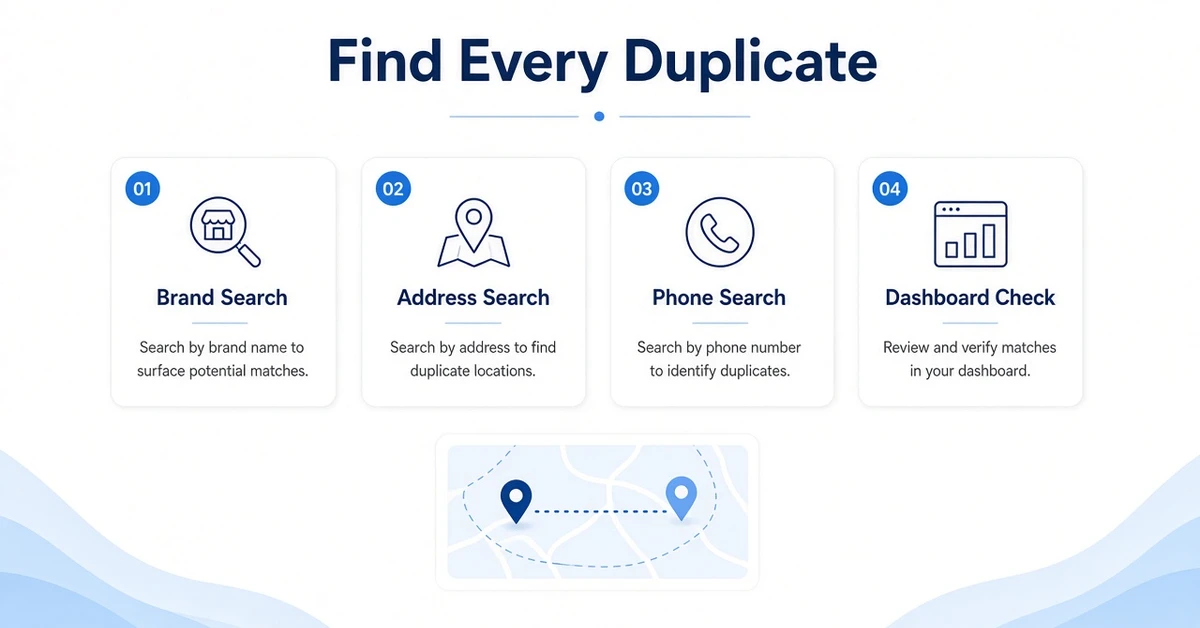
Run this four-pass search in an incognito browser window before you touch a single setting:
- Exact brand name + city on Google Maps. Zoom into your block and click every pin that looks close. Look for bare-bones profiles with one or two reviews and a “Claim this business” link.
- Street address only (with and without suite numbers). Search the raw street address on Maps. This exposes old businesses that used your storefront, misspelled brand names, and individual practitioner listings sharing your roof.
- Phone number search on Google. Search your main phone number—and any old tracking numbers—in quotes alongside
site:google.com/mapsor in standard Search to see if an older listing still answers to that line. - Check your Business Profile Manager list. Sign into Google Business Profile Manager and check for any row labeled Duplicate, Unverified, or Disabled.
Log the exact Maps URL, verification status, review count, star rating, and address for every profile you find. This is step one of our step-by-step Google Business Profile audit.
Merge vs. Remove: the decision that saves your reviews
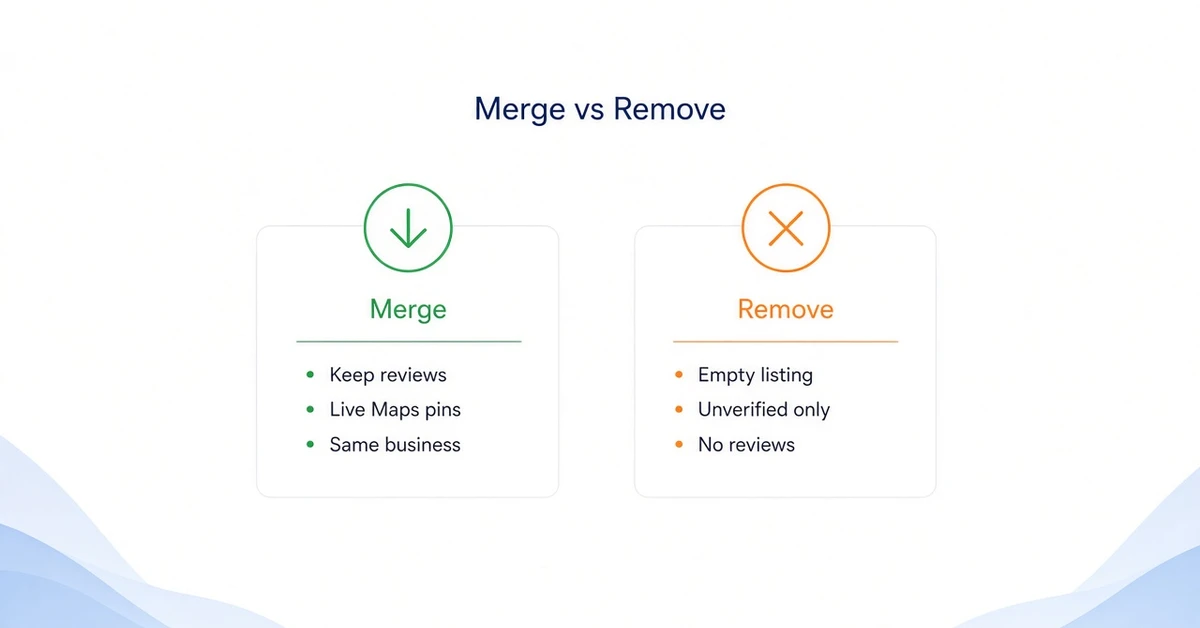
Here is the trap that catches business owners every week: removing a profile from your Google account does not merge it, and it does not always delete it from Google Maps.
When you click “Remove business profile” inside your account settings, you strip away your ownership, your photos, your posts, and your review replies. Worse, if the listing was already live on Maps, the public shell often stays on the map as an unclaimed pin—or you lose the chance to consolidate its reviews into your main profile.
Use this decision matrix before you act:
| Scenario | Where it shows | Has reviews? | Right action |
|---|---|---|---|
| Two live listings for the same business at the same address | Public on Google Maps | Yes (on one or both) | Merge via Maps “Suggest an edit” or GBP Support |
| Unclaimed duplicate pin with zero reviews | Public on Google Maps | No | Report as duplicate on Google Maps (Suggest an edit) |
| Unverified duplicate you created by mistake | Inside your GBP dashboard only | No | Remove profile from your Google account |
| Old address listing after your business relocated | Public on Google Maps | Yes | Contact GBP Support to move/merge reviews to the new address |
| Verified listing owned by an old agency or ex-employee | Public on Google Maps | Yes | Request ownership access — do not create a new listing |
| Fake competitor spam pin or a business that never existed | Public on Google Maps | Any | Suggest an edit → Close or remove → Never existed here |
Path 1: How to merge a duplicate listing on Google Maps (and keep reviews)
There is no “Merge” button inside Business Profile Manager. To combine two live profiles that represent the same business at the same location, you either report the duplicate on Google Maps or open a ticket with Google Business Profile Support.
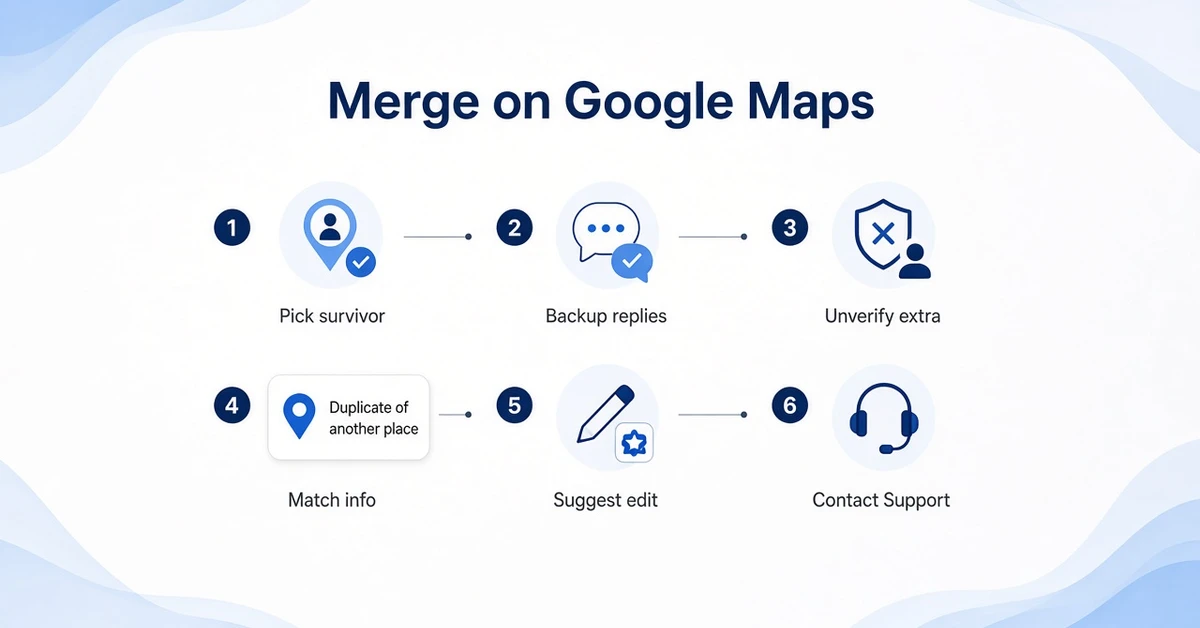
Follow this exact sequence so Google’s review team approves the merge on the first try:
- Pick the surviving profile. Keep the verified profile with the longest history, strongest review count, and cleanest field standard.
- Back up owner replies on the duplicate. Save a quick text copy of any detailed review responses on the profile that is about to be merged away.
- Unverify the extra profile if both are verified in your account. Google Support generally will not merge two profiles while both remain verified. Keep your primary listing verified, and only unverify or prepare the secondary one if support instructs you or if you control both.
- Make sure both listings look like the same business. According to Google’s merge documentation, the profiles must represent the same business and have matching core info. If one listing has an old suite number or a completely different business name, suggest an edit to align the name and address first, or explain the match clearly to support.
- Submit the merge on Google Maps. Open Google Maps, pull up the duplicate profile (not your primary one), click Suggest an edit → Close or remove → Duplicate of another place, select your primary verified listing when prompted, and click Submit.
- Escalate to GBP Support after 72 hours (or immediately if reviews are at stake). Public Maps edits are reviewed automatically and by moderators, which can take a few days. If the edit is not approved within 72 hours—or if you accidentally created a second listing when moving addresses—contact Google Business Profile Support. Give them both Maps URLs, both Business Profile IDs, state clearly which profile should survive, and attach a photo of your permanent storefront signage or utility bill.
Path 2: When and how to remove a duplicate from your Google Account
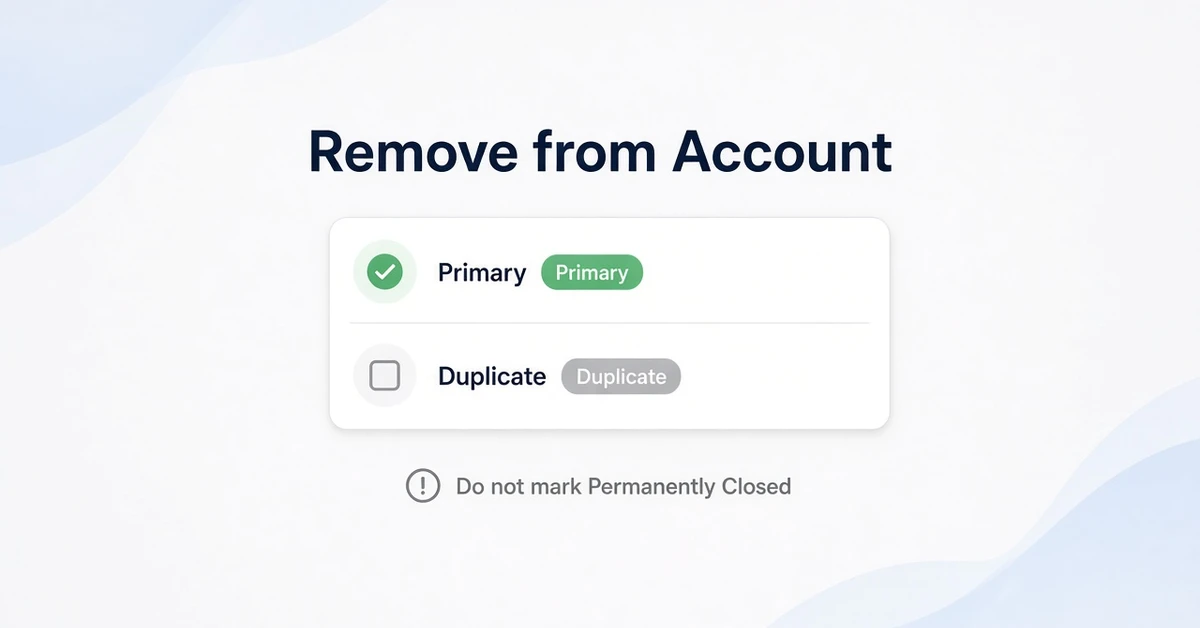
What if your dashboard shows a grey “Duplicate” badge next to a profile you just created? That badge means Google detected that a verified profile for this business already exists—either in another tab of your own account or under a different email address.
Here is how to handle dashboard duplicates safely, based on Google’s profile removal rules:
- If you already manage the real verified profile in the same account: You can safely remove the unverified duplicate. In Business Profile Manager, check the box next to the duplicate row, click Actions → Remove businesses → Remove (or open the profile settings → Remove Business Profile → Remove profile content and managers). Do not check “Mark your business as permanently closed,” or you risk telling Google the real business shut down.
- If someone else owns the verified profile: Do not create another listing. Go to business.google.com/add, type the business name and address, select the existing profile, and click Request Access. The current owner gets 3 days to respond. If they approve, you get access; if they ignore it after 3 days, Google typically gives you the option to verify and claim it yourself.
- Watch the 7-day rule for new owners: Google enforces a security cooldown—new owners and managers must wait 7 days before they are allowed to remove profile content or other managers.
Special cases: practitioners, shared addresses, and moved businesses
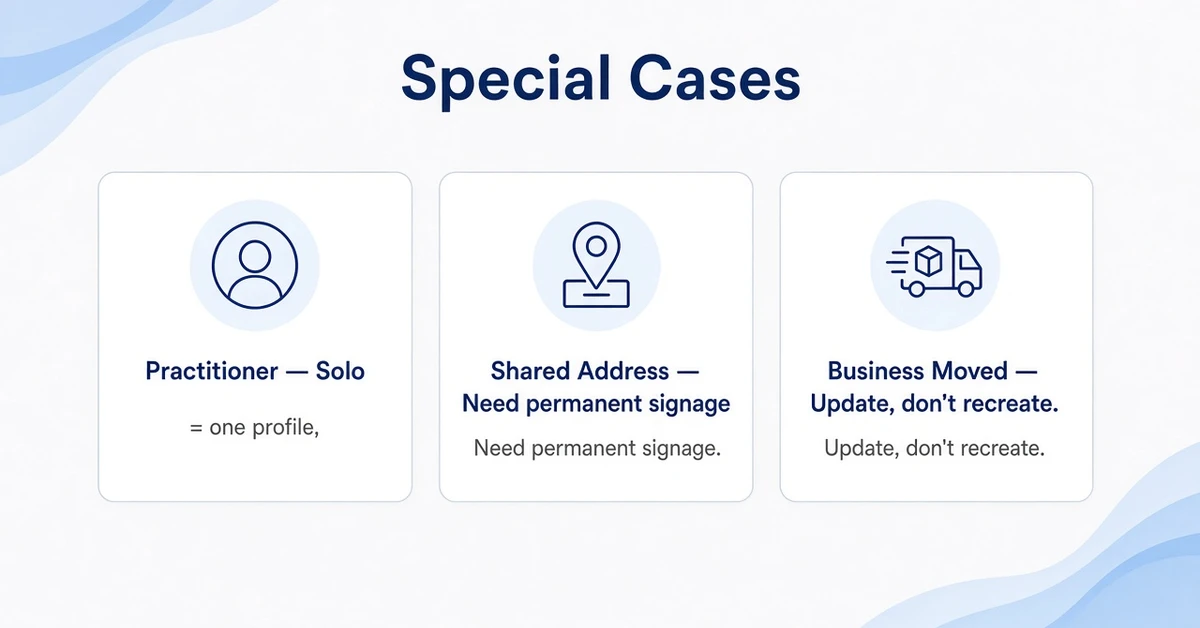
Not every second pin at your address is a simple typo. Three edge cases come up constantly in agency audits:
1. Doctors, dentists, lawyers, and real estate agents (practitioner listings)
Google allows public-facing professionals (doctors, dentists, lawyers, financial planners, insurance or real estate agents) to have individual practitioner profiles if they work at a multi-practitioner firm. However:
- Solo practitioner rule: If there is only one doctor or lawyer at the practice, Google states the practitioner should not have a separate listing from the practice. They should be merged into one profile named after the practice or practitioner.
- Departure rule: When an employed doctor or agent leaves your firm, you usually cannot just delete their individual history—instead, request a merge or update so the practice retains its location authority without misleading patients.
2. Two distinct businesses legitimately sharing one address
Maybe you run two separate legal entities in the same building, or you share a plaza with another shop and Google mistakenly marked your listing as a duplicate of your neighbor. To coexist at the same address without a duplicate flag, Google requires:
- Distinct legal business names with permanent, clearly visible signage for each business
- Different phone numbers and separate websites (or distinct local landing pages)
- Non-overlapping primary categories
If Google wrongly merged two distinct businesses at the same address, contact support to appeal the duplicate status and attach photos of the permanent exterior and suite signage showing both brands clearly.
3. You moved locations and created a second profile
If you moved from Street A to Street B and created a brand-new profile at Street B, do not just mark Street A “Permanently closed” if you want the reviews to carry over. Contact Google Business Profile Support, explain that the business relocated, and ask them to move and merge the old profile’s reviews into the new address.
How to keep duplicate listings from coming back
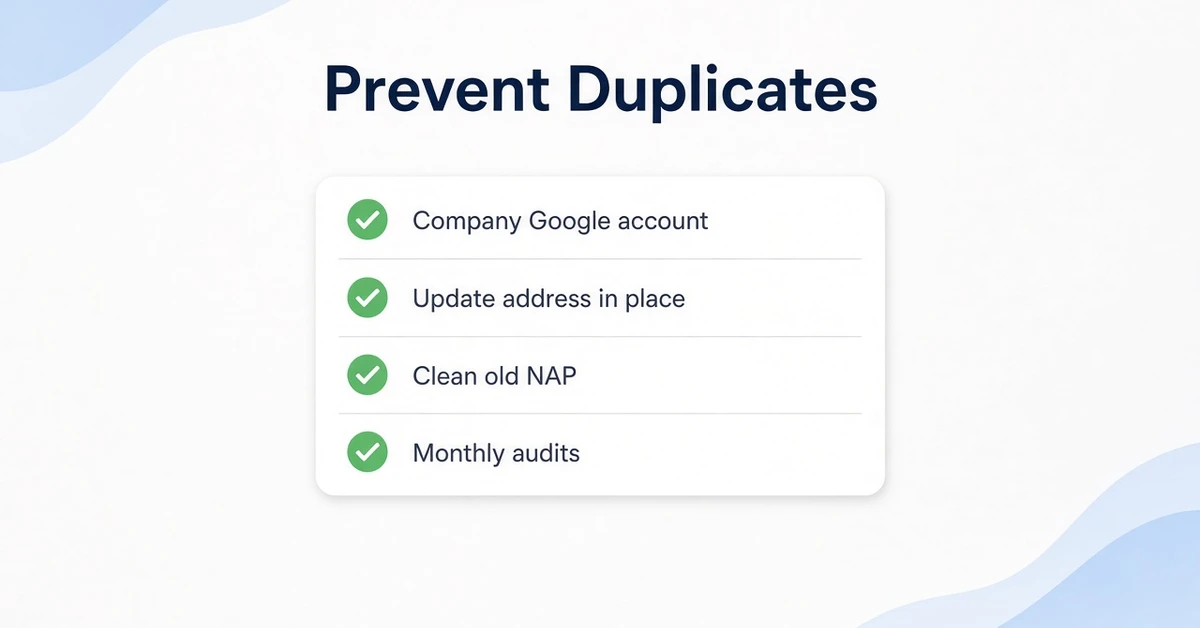
Once your profiles are consolidated into a single verified listing, lock the door behind you so another duplicate does not appear six months later:
- Store master login ownership in a company Google account. Make a brand-owned email the Primary Owner and add agencies or staff as Managers. That way, nobody ever creates a duplicate because “we lost the login.”
- Update your address in place when you move. Edit the existing profile’s address and re-verify if prompted; never click “Add business” for a relocation.
- Clean up the old NAP on your website and major directories. If an old address or phone number still lives on your contact page or major citations, Google Maps can auto-generate a new shell pin from that stale data.
- Run a monthly audit on every location. Score your surviving profile with our Google Business Profile SEO checklist so categories, hours, photos, and reviews stay on one authoritative listing.
In PinAudit, running a recurring audit gives you an Optimization Score out of 100 for your canonical profile, queues open fixes in Action Center, and shows What Changed between audits—while paid plans track Maps Visibility by keyword and location (user-triggered refresh about every 15 days). See how PinAudit works, explore features, or compare pricing for your location count.
Frequently asked questions
How do you merge two duplicate Google Business Profiles?
There is no merge button inside Business Profile Manager. Make sure both profiles represent the same business with matching core details, then open the duplicate on Google Maps and click Suggest an edit → Close or remove → Duplicate of another place. If the edit is not approved after 72 hours or reviews are at stake, contact Google Business Profile Support with both profile IDs and ask them to merge the listings.
Do you lose reviews when you merge duplicate Google Business Profiles?
No—when Google merges two duplicate Business Profiles, customer reviews from both listings are combined onto the surviving profile. However, your written owner replies to those reviews may be lost, so copy any important owner responses before requesting a merge. If you click Remove Business Profile instead of merging, reviews do not transfer.
What is the difference between merging and removing a duplicate Google Business Profile?
Merging combines two live Google Maps listings for the same business into one profile and carries customer reviews across. Removing a profile inside Business Profile Manager only strips the listing, photos, posts, and managers from your Google account—it does not transfer reviews and often leaves an unclaimed shell pin on Maps.
Why does my Google Business Profile say "Duplicate" in my dashboard?
A "Duplicate" status in Business Profile Manager means a verified profile for that business already exists in your account or under another Google account. Do not verify a second profile. Remove the unverified duplicate from your dashboard if you already manage the verified listing, or use business.google.com/add to request ownership access from the current owner.
Can two businesses have a Google Business Profile at the same address?
Yes, if they are genuinely distinct, eligible businesses with different legal names, permanent and clearly visible signage for each business, separate phone numbers, and non-overlapping primary categories. Individual practitioners (such as doctors or lawyers) may also have listings at a multi-practitioner practice, but solo practitioners should share one profile with the practice.
Final thoughts
A Google Business Profile duplicate listing is not a reason to start over—it is a consolidation job. Find every extra pin in incognito Maps first, protect your reviews by merging live duplicates instead of blindly deleting them, and claim access when an old account holds your verified listing hostage. Once one clean profile owns the address, your reviews, photos, and local pack signals finally pull in the same direction.
PinAudit — Google Business Profile audit software for freelancers, consultants, and agencies.
Email: support@pinaudit.com
Web: pinaudit.com · App: app.pinaudit.com
Features · Pricing · Contact us
Tags: google business profile duplicate listing · merge google business profiles · remove duplicate google business profile · duplicate GBP listing · local SEO